
For vendors
Run your table from your phone, from the first scan to the last sale.
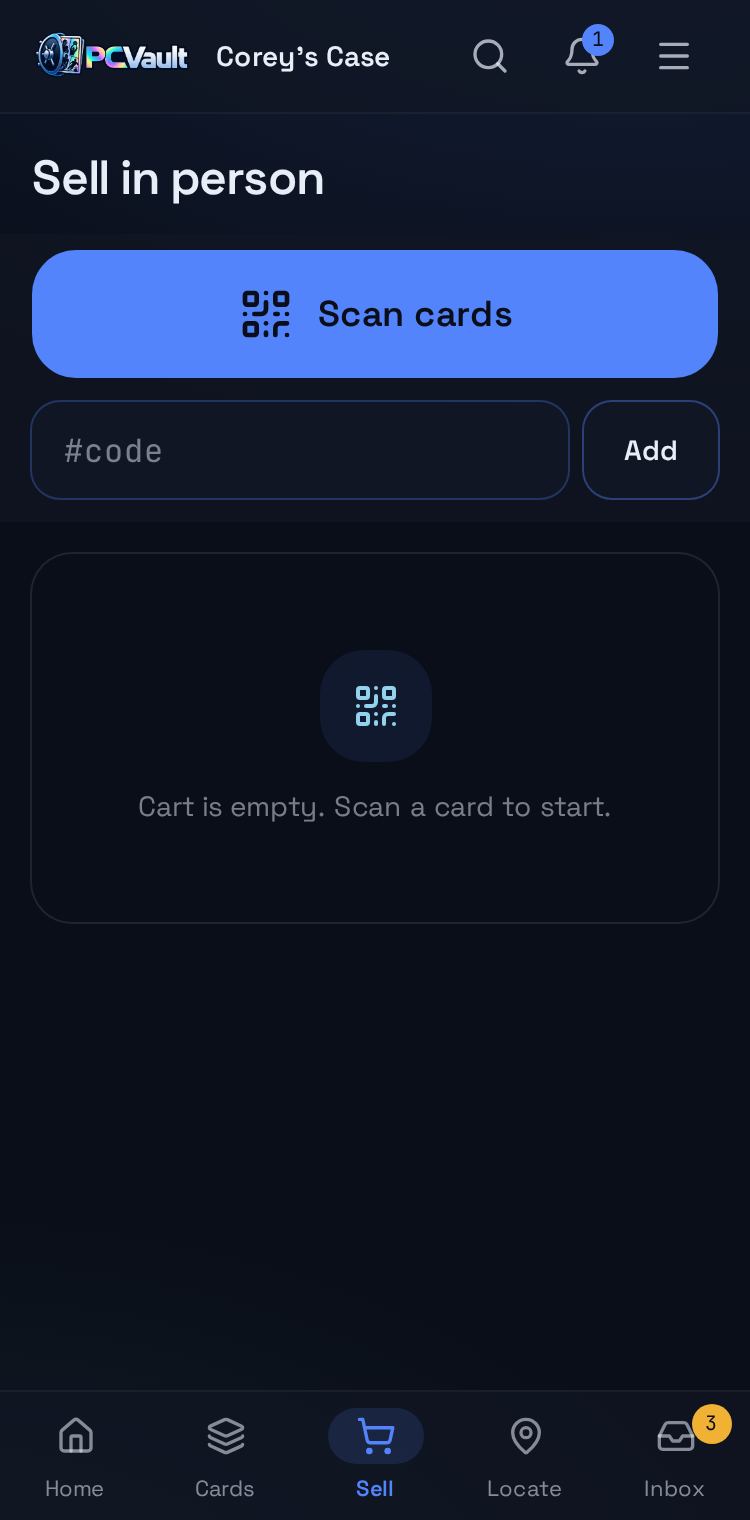
PCVault lets a vendor price, find and sell cards at a show from one phone. Buyers scan a QR label to see the value and recent sales, you find any card by case and row, and sell mode totals a cart at a percent of comps.
How it works
Find any card in seconds
- Every card has a case and row
- Scan a label or type a code to locate it
- Big case and row tiles for quick filtering
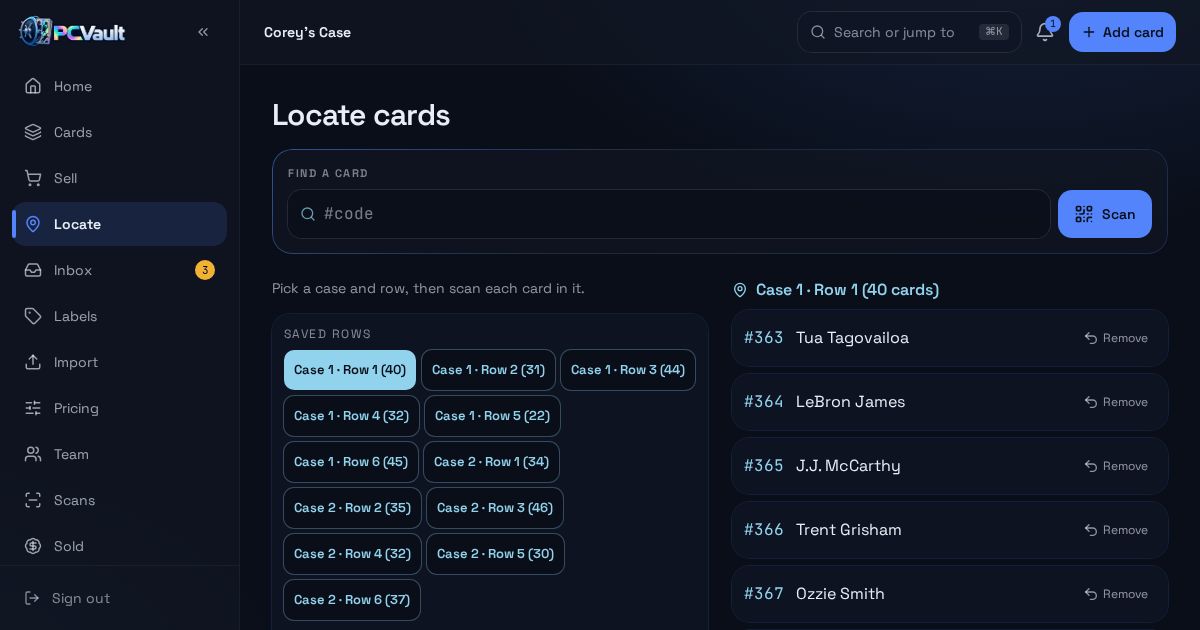
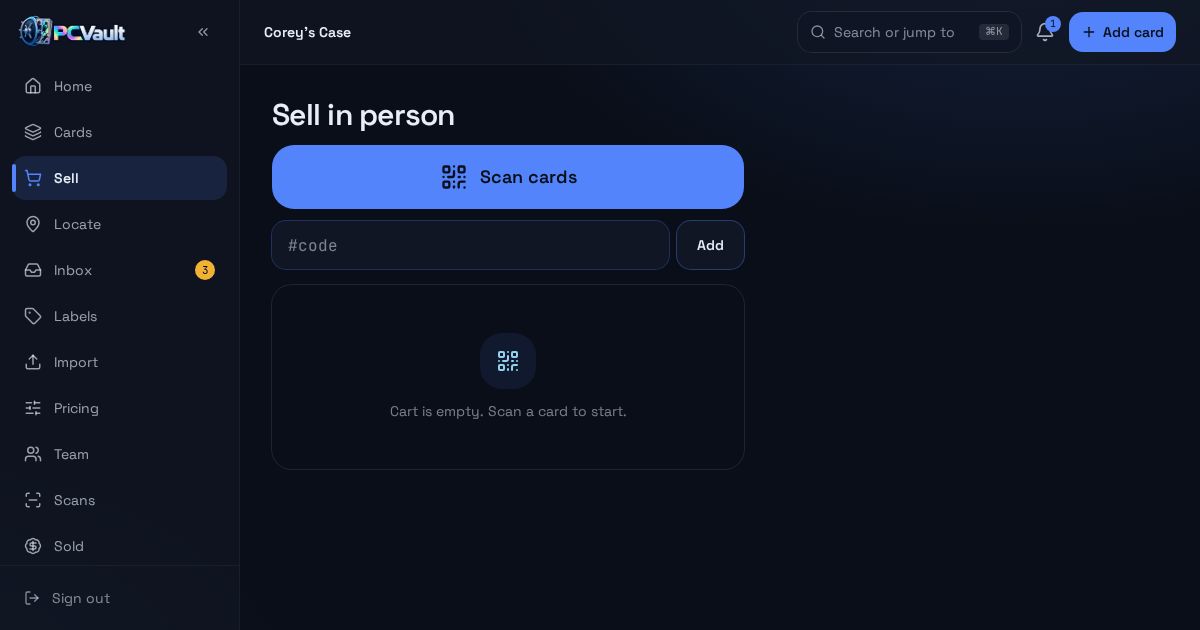
Sell at a percent of comps
- Scan cards into a cart
- Set a percent per card or for the whole cart
- Your minimum percent locks so you never go under it
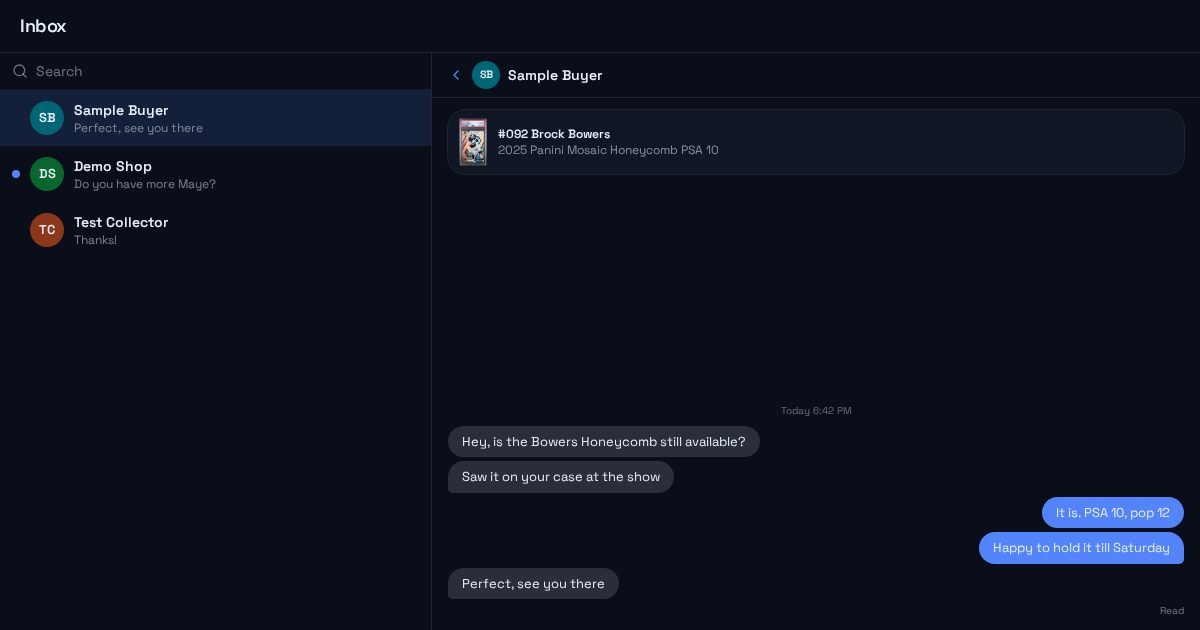
Take offers and messages
- Buyers build a bundle and send an offer
- Messages arrive with the card attached
- Mark the sale and it moves to Sold
What you get
Case and row locations
Every card knows where it lives in your display.
Locate
Scan to find, with a clear Case and Row callout.
Sell mode
A cart with totals and one tap Mark all sold.
Minimum lock
Per-tier floors the cart cannot go below.
Card transfers
Send cards to another seller's @username.
Label queue
Print only the labels that changed.
Live demo
Try Sell mode
The real Sell screen with Corey's For Sale cards. Demo, nothing is saved.
The real admin screens with Corey's For Sale cards. Demo, nothing is saved.
Before and after
Before
- Digging through boxes to find a card
- Doing comp math on a calculator
- Writing sales on a notepad
With PCVault
- Case and row on every card
- Percent of comps worked out in the cart
- Sales recorded as you go
Questions
Do buyers need an app or account?
No. Buyers scan the QR label with their phone camera and the card page opens in the browser. They can see the value and recent sales and send you an offer without creating an account. You get the offer in your Inbox along with their contact details.
How does sell mode price a cart?
Sell mode starts from each card's market value and applies the percent of comps you choose. You can set one percent for the whole cart or adjust each card. Minimums from your pricing tiers are respected, and you confirm the final amount before cards are marked sold.
What labels can I print?
PCVault prints QR labels sized for common label printers and can export a CSV for Nelko printers. New cards are added to a label queue automatically, so you print only what is new. Each QR link is permanent and keeps working if the card moves.
Can I find a card in my cases quickly?
Yes. Save a case and row for each card from the Locate screen by scanning cards into a row. Later, scan or type any code and PCVault shows which case and row the card lives in. Your public page never shows locations on tiles.
Keep exploring
Start free with 15 active cards
Upgrade when you need more cards, selling tools or staff logins.
Create your account