
Add from a photo
Add a card from a photo
Snap the front of a raw card or slab, add the back if you like, and PCVault reads the player, year, set, parallel, number, serial and grade. Fields it is unsure of are marked check this. Slabs are checked against the grader's cert record, and a market match is suggested for you to confirm.
Point your camera at a card and check what it found.
Last reviewed
How it works
Snap the card
- Front first, inside the outline
- Add the back or skip it
- Originals kept, cropped copy saved
Check what it read
- Every field prefilled and editable
- Unsure fields marked check this
- Slabs checked against the grader cert
Confirm the match
- A suggested market match with value
- This is it, or Not this one
- Add another for the next card
What you get
Raw cards and slabs
One flow for both, from a phone or computer.
Cert lookup
PSA, BGS, SGC and CGC records win over the photo.
Close-up number read
Card number, serial and year are read twice.
Market match
A suggested match with its value before you save.
Your photo first
Your photo stays the main image on the card.
Add another
Keep adding cards in a row with a running count.
Live demo
Where new cards land
The real Cards screen with @founder's cards. Demo, nothing is saved.
The real admin screens with @founder's For Sale cards. Demo, nothing is saved.
Before and after
Before
- Typing the set and parallel from memory
- Squinting at tiny serial numbers
- Searching for the right comp
With PCVault
- Details read from the photo
- Number fields checked twice
- A match suggested to confirm
Questions
How do I scan a card with my phone?
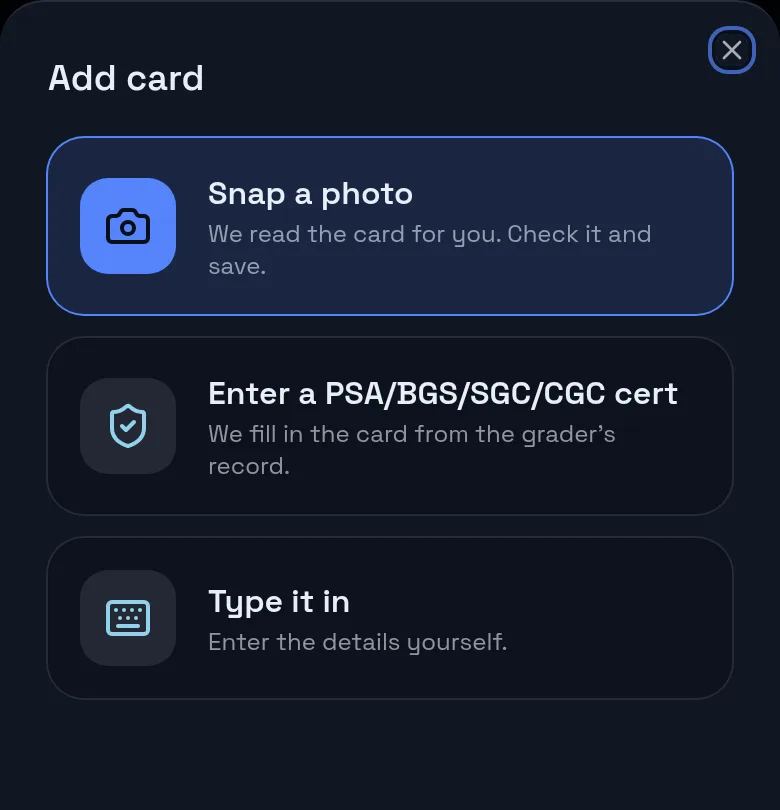
Open Add a card and choose Snap a photo. Fill the outline with the front of the card, avoiding glare, then add the back or skip it. On a computer the same option is called Upload a photo.
Which details does it read?
Player, year, set, insert, parallel, card number, serial number, grader, grade, cert number, sport and team. Number fields get a second close-up read, and any field below the confidence bar is marked check this so you can fix it before saving.
Does it work for slabs?
Yes. For PSA, BGS, SGC and CGC, PCVault looks up the cert from the label and the grader record wins over the photo. The match shows Matched from the PSA label, or the grader's name. You can also type a cert number directly with Enter a cert.
What if the market match is wrong?
Tap Not this one to see the next close matches, or This is it to lock the right one. If nothing fits, save the card and it shows No market match yet, we will keep looking.
What is the Your photo label?
When a suggested match has no stock image, PCVault shows your own photo in its place with a small Your photo label. Your photo stays the main image on the saved card either way.
Are my original photos kept?
Yes. PCVault saves a cropped copy for the card and keeps the untouched original, so you can re-crop it later from the card page.
Keep exploring
Start free with 15 active cards
Upgrade when you need more cards, selling tools or staff logins.
Create your account